Showing posts with label scribe. Show all posts

Wednesday, 25 September 2013

How to Flag a Post or a Discussion in a LinkedIn Group as a Promotion or a Job using Scribe and Java

As a sequel to my earlier post, Programmatically Posting to LinkedIn Groups via LinkedIn REST API and using Scribe-Java OAuth Library, in this post I will demonstrate how you can Flag a Post or a Discussion in a LinkedIn Group as a Promotion or a Job using Scribe and Java.

Flag Post or Discussion in LinkedIn Group as Promotion or Job

Consider the output of our example program in my previous post:

Notice the following header and its value:

Location = http://api.linkedin.com/v1/posts/g-5046253-S-259167773

This URL contains the post id of the published post and it is the very last part of the URL “g-5046253-S-259167773”.

So, what we will do now is the extend the same program/example and will try to extract the “Location” header value and then extract the “post-id” from that value:

//http://api.linkedin.com/v1/posts/g-5046253-S-276447044
String preUrl = "http://api.linkedin.com/v1/posts/";
String url = response.getHeader("Location").substring(preUrl.length());
url = preUrl + url + "/category/code";

Once you have the target URL, you can now proceed with the HTTP PUT request, using the url as a LinkedIn REST API end point.

OAuthRequest request = new OAuthRequest(Verb.PUT, url);
request.addHeader("Content-Type", "text/xml");

Now, if you want to Flag your Post or Discussion as a Promotion, you should add following XML stanza as the pay load to this request:

request.addPayload("<code>promotion</code>");

OR, if you want to Flag your Post or Discussion as a Job, you should add following XML stanza as the pay load to this request:

request.addPayload("<code>job</code>");

And, finally send the request to LinkedIn REST API server:

signOAuthRequest(request);
response = request.send();

When you run this updated program, you will see an output similar to the following on your console:

The Code 204 is fine, in our case as it complains about “No Content”. Your Post or Discussion on a LinkedIn Group has been Flagged as a Promotion or a Job.

Tuesday, 24 September 2013

Share a Post on Facebook Page using Scribe and Java

As a second Part of my earlier post, I will now demonstrate how you can Share a Post on a Facebook Page using Scribe and Java.

The pre-requisites/setup is the same as mentioned in the first part. i.e.

  • Create a Facebook App and get App ID & App Secret
  • Initialize Scribe’s OAuthService using above information
  • Get Short Lived Access Tokens and then exchange it a Long Lived Access Token – Note that these tokens are the Facebook App’s Tokens

    Token accessToken;

    //facebook app's short-lived access token
    //accessToken = getFbAppShortLivedAccessToken(oAuthService);
    //accessToken = new Token("CAAF3yH4PHBkBAO4mTp8sgngVkNgQxAebc1xt4O64qeOqlzxiI7vyJpM8Ml7VAIKROHPJB5IgDEgi0ShfWIkrnuMirmEm0UjuYFSrRlaURj9YWEWWKLrBQN5vrjFkid4JPMMYsewEcODKe73dp3LYA2JeHld8ZAJc1EkLZCr3HNdYLprSJF", "");

    //facebook app's long-lived access token
    //accessToken = getFbAppLongLivedAccessToken(oAuthService, accessToken);
    accessToken = new Token("CAAF3yH4PHBkBAKUwtBB5SAEreaLN2uVDRI48Q5LhAEHn2kUKaCyDcUO1y8ZBobqFccBx7QDdIWDd4gKJcQpZCYMAIy7P5KIKRBrvzuliJpjUJW18QUU3ijk4NMqROZAPmmrHqf24PufYNK9R26vRn9X7suDtuSze3eKvh5zSrZADZAkZCZARHan9ZAyWZBZBKvhWUZD", "");

  • You will also have to get the Short and Long Lived Access Tokens for the Facebook Page, on to which you want to share a post

    Token pageAccessToken;

    //facebook page's short-lived access token
    //pageAccessToken = getFbPageShortLivedAccessToken(oAuthService, accessToken);
    //pageAccessToken = new Token("CAAF3yH4PHBkBAMzY4Tyi5nyzhckF2DZC0V3ZBWjd5orLwZCw2Xv6lZBhCxsB29HCwPKdF8iMPgqmdurK9ZB2vmL7wPHlrWxagZA329QZBrnwkswZAMPZCDTvL5xcfCAvmZCTQXe6kS5ZAbUIELd1TeqB0pbjmkYh6w6kTNxtvRCSnAtDWOLMeP7qvpPMFXP21JFzToZD", "");

    //facebook page's long-lived access token
    //pageAccessToken = getFbPageLongLivedAccessToken(oAuthService, pageAccessToken);
    pageAccessToken = new Token("CAAF3yH4PHBkBAOSP9vZA0ZA876psVlRIfl1kQ4wdZBRm6M2nCx6Ru9eurBGzcx1zfLtBDZC2EFnGSNWuukwLpmgVHil57oXiZBLYRoWl0h8DcE8XSpAGvcxOumJrZBHZAEEFjZA1jrDVZCJu8ZBLZBQUqwKll0Ngy4EZCiglCYGSTj9NbOkuyX8S6vQl", "");

Finally:

OAuthRequest request = new OAuthRequest(Verb.POST, "https://graph.facebook.com/" + FB_PAGE_NAME + "/feed");
SimpleDateFormat sdf = new SimpleDateFormat("EEE, d MMM yyyy HH:mm:ss Z");
String message = "test message - " + sdf.format(new Date());
request.addBodyParameter("message", message);
String link = "
http://codeoftheday.blogspot.com/";
request.addBodyParameter("link", link);
request.addBodyParameter(ACCESS_TOKEN, pageAccessToken.getToken());
oAuthService.signRequest(accessToken, request);
Response response = request.send();

Note that we have used accessToken, Facebook App’s Access Token, to sign the request as usual. And, we are passing the pageAccessToken, Facebook Page’s Access Token, as a parameter of our request. This will ensure the Facebook Page Impersonation, such that the Facebook Page’s name and icon will be displayed as the Sharer. If you don’t pass pageAccessToken as a parameter than the Facebook App’s name and icon will be displayed as the Sharer.

Thursday, 12 September 2013

Share Post on Facebook Wall or Timeline using Scribe and Java

In this post, I will demonstrate how you can share post on your Facebook Wall or Timeline using Scribe OAuth API and Java.

As a pre-requisite, log into your Facebook account and go to Facebook Developer Apps section. If this is the first time you will have to register (no forms to fill, just a click of a button; more of a permission grant).

Create a new app, just fill the “Basic” information.
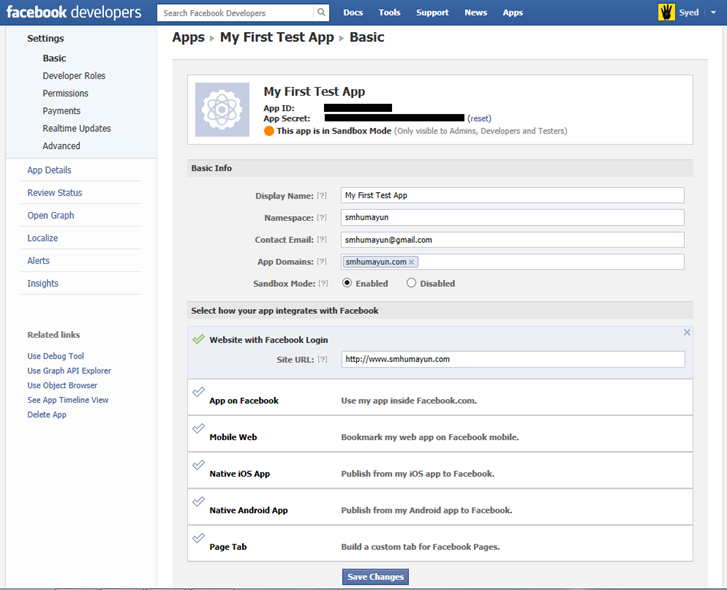
new facebook app

Once you click on “Save Changes”, your new app will be created and a unique “App ID” and “App Secret” will be assigned to your app. YOU SHOULD NOT SHARE THIS WITH ANY ONE and KEEP IT SAFE AND SECURE.

Besides, you will need these (ID & Secret) to make calls to Facebook servers via Graph API.

private static String FB_APP_KEY = "012345678901234";
private static String FB_APP_SECRET = "0123456789abcdef0123456789abcdef";

First thing to do is to initialize Scribe’s OAuthService, so that we can sign our requests to be sent to Facebook servers.

new ServiceBuilder()
        .provider(FacebookApi.class)
        .apiKey(FB_APP_KEY)
        .apiSecret(FB_APP_SECRET)
        .callback("
http://www.smhumayun.com/”)
        .build();

The call back URL used above is the same which we provided as a “Site URL” during our Facebook App creation. With one very important difference, the trailing forward slash “/”. No matter, if you have provided that trailing forward slash in your app’s “Site URL” or not, you MUST always append a forward slash “/” in your callback code. This might seems insane to you, but trust me, a lot of developers have banged their heads against the wall for this minor detail Smile

Next you’ll have to fetch the Short-Lived Access Token (typically expires in an hour or two).

String authorizationUrl = oAuthService.getAuthorizationUrl(null);
System.out.println(authorizationUrl);
System.out.println("And paste the authorization code here");
System.out.print(">>");
Verifier verifier = new Verifier(new Scanner(System.in).nextLine());
fbAppShortLivedAccessToken = oAuthService.getAccessToken(null, verifier);

The above code will print an Authorzation URL on console, you should copy that URL and open it in a browser and it will redirect to the same “callback” URL (we used above). The redirected URL will contain a ‘code’ query string parameter, copy the value of ‘code’ param and paste it on the console.

If this is a one time test, than you are good with Short-Lived Access Token, but if you want to make it part of a program, you need to exchange it with a Long-Lived Access Token (typically expires in 60 days).

OAuthRequest request = new OAuthRequest(Verb.GET
        , "
https://graph.facebook.com/oauth/access_token?grant_type=fb_exchange_token"
        + "&client_id=" + FB_APP_KEY + "&client_secret=" + FB_APP_SECRET
        + "&fb_exchange_token=" + fbAppShortLivedAccessToken.getToken());
oAuthService.signRequest(fbAppShortLivedAccessToken, request);
Response response = request.send();

In order to get the Long-Lived Access Token, you have to send the Short-Lived Access Token to Facebook server with an exchange token request with “grant_type” as “fb_exchange_token”. Note, we use the same Short-Lived Access Token to sign this request.

As response to this request, you will get the Long-Lived Access Token, which you can safe/persist and re-use thereafter.

Finally:

OAuthRequest request = new OAuthRequest(Verb.POST, "https://graph.facebook.com/me/feed");
SimpleDateFormat sdf = new SimpleDateFormat("EEE, d MMM yyyy HH:mm:ss Z");
String message = "test message - " + sdf.format(new Date());
request.addBodyParameter("message", message);
String link = "
http://codeoftheday.blogspot.com/”;
request.addBodyParameter("link", link);
oAuthService.signRequest(accessToken, request);

You will create a new request to post a ‘message’ and a ‘link’ to your Facebook Wall or Timeline.

If all goes well, and the message/link were posted successfully, you will receive an “id” of the newly created post.

Tuesday, 23 July 2013

Quick and Easy Integration of Google URL Shortener API in your Java Applications using Scribe-Java and GSon

This post is about a quick and easy integration of Google’s URL Shortener Service/API in your Java Applications using popular APIs like Scribe-Java and Google’s GSon.

The good part about this integration is that you don’t need to do additional steps to register your application with the Service APIs, because in this case, the Google’s URL Shortener Service can be accessed “anonymously”, with out having the need to register the application and performing the authentication and authorization steps.

google url shortener - goo.gl.com

First Download:

Create a new project in IDE of your choice and add above downloaded JAR files to your project’s build/class path.

GoogleUrlShortenerApiIntegrationUsingScribeExample.java:

Compile and Run the project. You will notice an output similar to the one below in your IDE’s console:

Copy the Shortened URL, open a browser of your choice and paste the Shortened URL into the browser’s Address Bar and press ENTER. You will notice how Google’s URL Shortener Service resolves your Shortened URL to your original (longer) URL.

Shortened URL:

google url shortener - shortened url

Original Longer URL resolved by Goo.gl:

google url shortener - original longer url

DOWNLOAD COMPLETE SOURCE FROM HERE

Thursday, 18 July 2013

Programmatically Posting to LinkedIn Groups via LinkedIn REST API and using Scribe-Java OAuth Library

In this post, I will demonstrate how you can post to LinkedIn Groups programmatically via LinkedIn REST API and using Scribe-Java OAuth Library.

To start with, you need to have an active LinkedIn account. Plus, you need to create a new LinkedIn Developer Application from LinkedIn Developer Site. If you want help on this, please refer to my previous post in which I demonstrate how you can create a new LinkedIn Developer Application, set different Scope(s) and how you can get following:

  1. API Key
  2. API Secret
  3. OAuth Token
  4. OAuth Secret

Do note that, for this example, you need to have 'rw_groups' scope because it is required to retrieve and post group discussions as authenticated user. So make sure you have checked the relevant box against ‘rw_groups’.

A LinkedIn Group Post contains following elements:

  1. Post Title
  2. Post Summary
  3. Content URL
  4. Content Image URL
  5. Content Title
  6. Content Description

programmatically posting on linkedin groups

Here’s the code and inline explanation of what it does:

Once your program ran successfully, you will see a response on your console, similar to following:

Wednesday, 17 July 2013

Using LinkedIn REST API to Share Content Programmatically via Scribe-Java OAuth Library

In this post, I will demonstrate how you can use LinkedIn REST API to Share Content programmatically via Scribe-Java OAuth Library.

To start with, you need to have an active LinkedIn account. Plus, you need to create a new LinkedIn Developer Application from LinkedIn Developer Site. If you want help on this, please refer to my previous post in which I demonstrate how you can create a new LinkedIn Developer Application, set different Scope(s) and how you can get following:

  1. API Key
  2. API Secret
  3. OAuth Token
  4. OAuth Secret

Do note that, for this example, you need to have 'rw_nus' scope because it is required to retrieve and post updates to LinkedIn as authenticated user. So make sure you have checked the relevant box against ‘rw_nus’.

A LinkedIn Share contains following elements:

  1. Comment
  2. Content – Title
  3. Content – URL
  4. Content – Description
  5. Content – Image URL
  6. Visibility

linkedin share

However, if your application can't provide all the metadata, LinkedIn will attempt to fetch the missing content for you. So we will only provide following and rest will be handled by LinkedIn itself:

  1. Comment – against the content you want to share
    • For example: “H-1B Work Visa USA - Everything you need to know - Info, Tips, Guides, Stats, News, Updates, Recommendations, Community, Jobs and much more!”
  2. URL – of the content you want to share
  3. Visibility

Here’s the code and inline explanation of what it does:

Once your program ran successfully, you will see a response on your console, similar to following:

You can use the update key to request the XML or JSON representation of the newly created share. This can be achieved by making a GET call to http://www.linkedin-ei.com/v1/people/~/network/updates/key={update_key} (setting {update_key} to the value you received in the previous response)

Alternatively, you can choose to to use the update url to redirect the user to the newly created share. This URL serves as a direct link to the posted share on LinkedIn.com so they can view the share in the browser.

Monday, 15 July 2013

Consuming LinkedIn REST based Web Services using Scribe OAuth Java Library / API

In this post, I will demonstrate how you can consume/call LinkedIn’s REST based Web Services using a popular and easy to use OAuth Java library called Scribe. As an example, we will call LinkedIn’s Group API to fetch the number of members registered in that group.

Register a new LinkedIn Application

{ If you don’t have a LinkedIn account yet, you should create one now }

First you need to register a new application with LinkedIn to receive an API Key. This unique key helps LinkedIn to identify your application lets you make API calls.

Log into your LinkedIn Developer Account

Click on “+ Add New Application” button

Fill out the form – you need to fill following mandatory fields:

  • Application Name = My First Test App
  • Description = My First Test App
  • Website URL = {URL where your people should go to learn about your application.} – Note you can create a free Java Cloud Hosting Account as shown in my previous post
  • Application Use = For this example, you can select “Groups and Collaboration”
  • Live Status = Development (You can change it to “Live” once you have done your testing and want to go live)
  • Developer Contact Email = Your email address
  • Phone = Your contact number
  • OAuth User Agreement – Default Scope
    • r_basicprofile
    • rw_groups
  • Agreement Language = Browser Local Setting

linkedin developer new application

Once you fill the form and click on “Save” button, you will be provided with an API Key, Secret Key, OAuth User Token and OAuth User Secret. DO NOT SHARE THESE WITH ANY ONE ELSE.

linkedin oauth api key token

Create a new Java Web Application that will consume LinkedIn REST based Web Services

You will be amazed to see how Scribe made it easy to do OAuth and finally call the web service:

I externalized the secret keys, token and other information like URL, duration etc. so it becomes easy to change the configuration of your application with out re-compile the application all again. In the init() life cycle method of HttpServlet, I loaded all those externalized variables:

Here,

  • apiKey, apiSecret, token and tokenSecret are the ones you generated above.
  • url is the LinkedIn Group REST API’s URL (we will replace the {{gid}} with actual Group Id in our servlet)
    • http://api.linkedin.com/v1/groups/{{gid}}:(num-members,name)
  • durationInMillis is the time to cache the member count value. During that time any calls to this servlet will serve the client with cached value instead of making a call to LinkedIn Group REST API. Once that time is passed and comes a new client request, the servlet will attempt to fetch the value from LinkedIn Group REST API and update its cache. {durationInMillis defaults to 60 x 1000ms = 1 minute}
  • numMembersPrefix, numMembersPostfix, namePrefix and namePostfix will be used to extract the LinkedIn Group Name and Member Count from the REST API Response XML.

In the doGet() life cycle method of HttpServlet, notice that this servlet expects a request parameter ‘gid’ i.e. LinkedIn Group Id, from the client and if not found, it sets the content to ‘INV’ i.e. Invalid Group Id.

If we received a valid ‘gid’, then we first check it in our cache which is a simple HashMap<Long, GroupInfo>:

If we didn’t found an associated GroupInfo object in our cache, we create a new one. And then we check if it’s a first request coming for this ‘gid’ or the time passed since the last request against this ‘gid’ is greater than the configured ‘durationInMillis’ then:

Make a call to LinkedIn Group REST API

Save the time to GroupInfo’s lastChecked – so we knew when did we last fetched the Group Information from LinkedIn.

Extract the name and memberCount from the response xml and set them in GroupInfo object.

Also, set the extracted memberCount to content, to be returned to the client.

Save the updated (or newly created) GroupInfo object in cache.

Else, if the time passed since the last request against this ‘gid’ is less than the configured ‘durationInMillis’ then:

Simply return the member count value from the cache.

Click here to view this servlet live in action - http://smhumayun.ap01.aws.af.cm/ligmcs?gid=5046253

If you remember my last post about a FREE LinkedIn Group Member Count Widget for Blogger, Wordpress, Drupal, Joomla, Magento, Moodle, Typo, Alfresco, Windows Live, Blogspot, SharePoint, etc.., this widget service uses very similar code like the one I’ve demonstrated above.

You can see the production version of the same being used here.

DOWNLOAD COMPLETE SOURCE CODE FROM HERE

MemberCountServlet.java:

web.xml: